
Blog
How to connect Claude, Cursor, or Codex to your wedding plan
September 28, 2026 · Updated September 28, 2026
Click path for Claude, Cursor, and Codex, copied from Aven's connect dialog. ChatGPT can use the same URL. We do not have ChatGPT menu steps. These steps will go stale.
Prefer the button in the app
This page copies the connect dialog as it works today. Claude, Cursor, and Codex rename their menus. When that happens, this post is wrong and the app is right.
Open Workspace, then Connected clients, then Connect: https://aven.wedding/settings
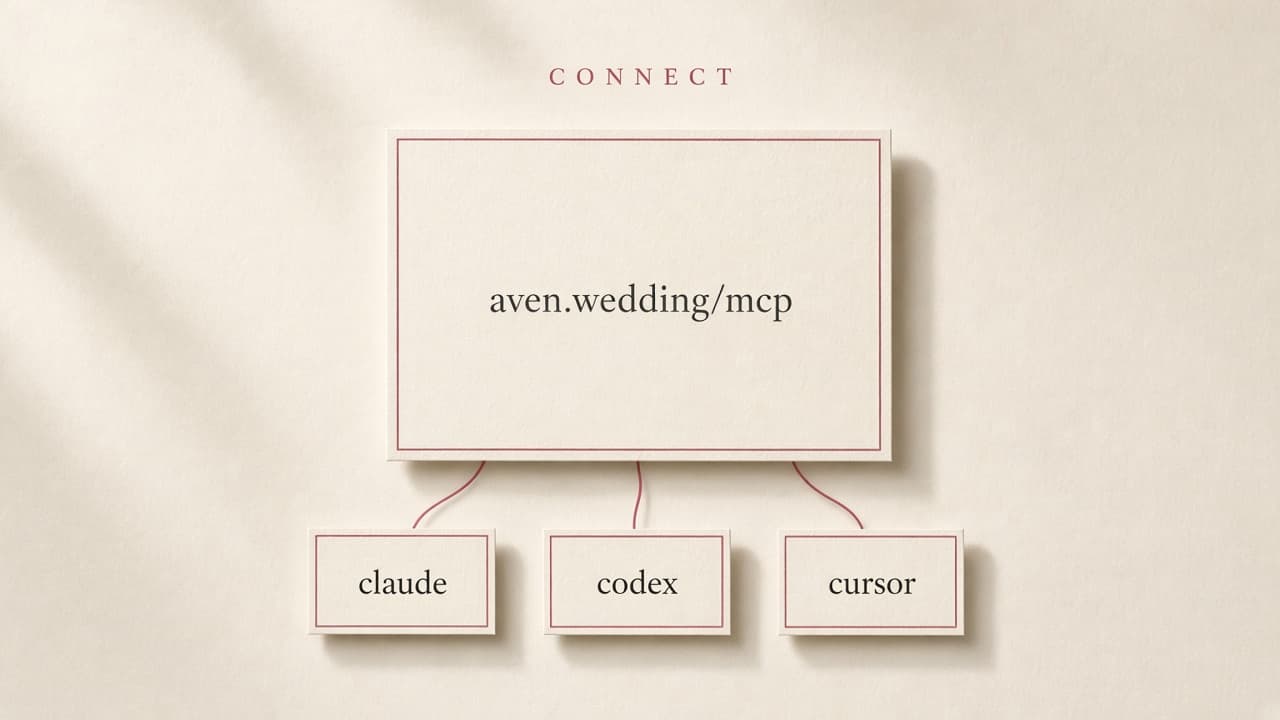
Copy the URL from that dialog. On the public site it is https://aven.wedding/mcp
The URL
Finish onboarding before you rely on it. Until the workspace is onboarded, the connector can tell you to finish setup and will refuse the other tools.
Sign in when the Aven screen appears, then tap Allow. If you later switch weddings, Allow again. Revoke on the Workspace page disconnects only that client. Your partner's connector stays.
Claude
- In Claude, open Customize, then Connectors. Some accounts show this under Settings, then Connectors.
- Add a custom connector and paste https://aven.wedding/mcp. You can leave the OAuth client ID blank.
- Click Add, then Connect.
- Sign in and tap Allow. After you switch weddings, Allow again.
Cursor
- Open Cursor Settings and go to MCP. Some versions label it Tools & MCP.
- Add a custom HTTP server, or paste this into ~/.cursor/mcp.json.
{
  "mcpServers": {
    "aven": {
      "url": "https://aven.wedding/mcp"
    }
  }
}
- Enable the server. Cursor starts the sign-in flow.
- Tap Allow. After you switch weddings, Allow again.
Codex
- Open ~/.codex/config.toml, or run codex mcp add from the terminal.
- Add this block.
[mcp_servers.aven]
url = "https://aven.wedding/mcp"
- Start Codex and run /mcp to confirm the server is listed.
- Sign in and tap Allow. After you switch weddings, Allow again.
This is a config file on your computer. Most couples will not want this path. Claude or the Connect button is the one that matches how the product is explained in settings.
ChatGPT
Aven accepts sign-in from chatgpt.com. Paste https://aven.wedding/mcp if ChatGPT asks for a custom connector URL.
We do not ship ChatGPT's menu steps. Do not follow a guessed click path from a blog post. Use whatever ChatGPT shows for a custom connector, then Allow on the Aven screen.
What this page will get wrong
The URL path /mcp is ours. The menu names above are theirs.
When Claude moves Connectors, or Cursor renames MCP, trust Workspace settings: https://aven.wedding/settings
The connector can change guests, tasks, bookings, and finance logs. It also sees guest details and personal invite links. Read what it changed.